 C-Pass Crew
Setup guide: install Crew V2
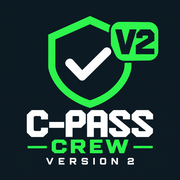
Use the dark icon with the green V2 badge. Keep your phone connected during setup.
Add Crew V2 to your home screen
Choose your phone for instructions.
iPhone / iPad
- Open your Crew V2 invitation link on your phone. You can use Google / Chrome or Safari.
- Google / Chrome: tap the three dots to open the menu, then tap Share. If a Share icon is already visible, you can tap it directly. Safari: tap Share (the square with an upward arrow).
- In the Share menu, scroll down and tap Add to Home Screen.
- Keep Open as Web App switched on if it appears, then tap Add.
If Add to Home Screen is missing, try Edit Actions in the Share menu. If your email or Google window does not offer it, choose Open in browser, or copy the link into Chrome or Safari and try Share again.
Android
- Open this page in Chrome.
- Tap the install button below if it appears. Otherwise open the Chrome menu (three dots) and choose Add to home screen, then Install if offered.
- Confirm the installation.
Computer or another device
You can use this page in your browser. If your browser offers Install app in its menu or address bar, you may use it.
Open the new icon
Return to your home screen and tap Crew V2 — the dark icon with the green V2 badge.
The old white C-Pass icon opens the previous app. You can remove that old shortcut to avoid confusion.
Enter your registered email
In Crew V2, enter the email your manager invited and tap Send my verification code. You do not need to copy an invitation link.
Enter your email code
Check your email inbox, return to Crew V2 and enter the eight-digit code. Tap Activate my app to see your work.
If no code arrives, check your spam folder and email spelling, or ask your manager to check your invitation.
Keep your invitation and verification code private. Installing the icon alone does not give access.
Connection help
Preparing the offline screen. Stay connected while setting up.
You need internet to see current shifts or send a response. If you are offline, reconnect and tap Try again.
After installation, open the dark Crew V2 icon. Enter your invited email in the app to activate access.